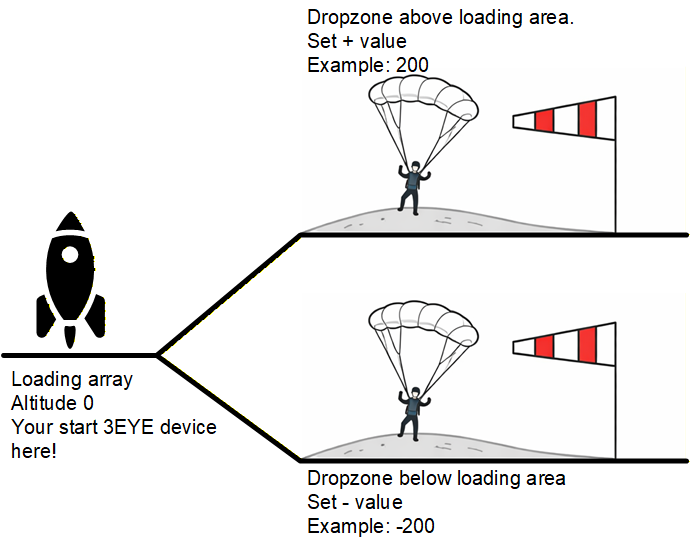
Figure 1. Dropzone altitude offset relative to the landing area.
2026
Version: 10.6.0
Your 3rd eye — under your control.
Link3EYE is a companion app for configuring the 3EYE HUD - a head-up display altimeter and variometer designed for skydivers. The app communicates with the 3EYE device over Bluetooth Low Energy (BLE) to manage settings, calibrate ground level, and review jump statistics.
| Platform | Notes |
|---|---|
| Android | Full BLE support. Requires Android with Bluetooth LE capability. |
| Web (Chrome) | Requires Chrome 89 or later. Saved preferences are session-based and not persistent across browser restarts. |
Link3EYE is not yet available on Google Play. Follow these steps to install it manually:
NOTICE Grant all Bluetooth and Location permissions when prompted.
On first launch the app requests the following permissions:
Open https://link.3eye.blue in your browser.
Use the app directly in your browser, or install it on your computer.
To install, click the Install icon on the right side of your browser’s address bar and follow the instructions.
NOTICE Grant all Bluetooth and Location permissions when prompted.
The Home Screen is the main navigation hub. It displays the app name Link3EYE and provides access to all sections:
| Menu Item | Description |
|---|---|
| Connect | Scan for and connect to a 3EYE device via Bluetooth. |
| Common | General device settings (units, display, intensity). |
| Ground | Ground-level pressure calibration and altitude readings. |
| Altimeter | Altimeter display configuration and altitude limits. |
| Vario | Variometer settings for freefall and canopy modes. |
| Statistics | Download and analyze recorded vertical events (jumps). |
| Help | Built-in HTML reference manual with text search. |
| About | App version, firmware version, and device information. |
The app bar color reflects the current connection state. When the device is connected, navigating to any configuration screen automatically requests the current settings from the device.
NOTICE If you open a configuration screen while the device is not connected, the app will display factory default values. A dialog reminds you to connect first.
The Connect screen manages the Bluetooth connection between your phone/computer and the 3EYE device.
Power on your 3EYE HUD and navigate to the Configuration Mode to enable Bluetooth (CF → BL). Bluetooth is enabled by default. If (BL) is green, Bluetooth is enabled. If (BL) is red, Bluetooth is disabled and must be enabled.
On your 3EYE HUD, in the Configuration Mode find your device name (CF → AD) and password (CF → PS).
Tap DISCONNECT (the same button toggles between connect and disconnect) to end the BLE session.
Enable the Autoconnect toggle to have the app automatically scan and reconnect to the last used device each time the Connect screen is opened. Autoconnect uses the saved password for the last connected device.
Tap DELETE to remove all saved device credentials (device ID, name, and password). A confirmation dialog appears before deletion proceeds.
NOTICE You can only scan or delete when not currently connected. Disconnect first if needed.
The Common screen controls global device display preferences. All changes are sent to the device immediately.
| Option | Altitude | Vario | Vertical Speed |
|---|---|---|---|
| METRIC | m | m/s | km/h |
| IMPERIAL | ft | ft/s | mph |
Changing the unit system affects all other screens.
| Option | Usage |
|---|---|
| HEAD-UP | For indirect viewing through a helmet visor. The display is mirrored. |
| HEAD-DOWN | For direct viewing (e.g., wrist-mounted). Normal display orientation. |
| Option | Description |
|---|---|
| EFFICIENT | Uses fewer active LEDs, consuming approximately 23% less energy than the Standard font. |
| STANDARD | Full LED rendering for maximum readability. |
Visual examples of both fonts are shown on-screen.
Drag the sliders to adjust. The minimum intensity cannot exceed the maximum, and vice versa - the app enforces this automatically.
Enable Night Mode to dim the display for low-light or night jumps. When active, intensity values are scaled down by a factor of 0.25 to minimize glare.
NOTICE: Works only when the device is operating in AltVar (AV) mode.
The Ground screen displays real-time pressure and altitude data, updated every 2 seconds if it is enabled. It allows you to calibrate the device’s ground-level reference and set a new drop zone elevation.
| Field | Description |
|---|---|
| QFE Atmospheric Pressure | The reference ground-level atmospheric pressure. Displayed in Pa (metric) or mPSI (imperial). |
| Static Atmospheric Pressure | The current pressure measured by the 3EYE sensor at its present altitude. |
| Field | Description |
|---|---|
| FL Altitude | Flight Level altitude referenced to the standard pressure (1013.25 hPa / 29.92 inHg). |
| AGL Altitude | Altitude Above Ground Level, computed from the difference between sensor pressure and ground reference pressure. |
Tap RESET to force-calibrate the 3EYE sensor to the current airfield elevation. Use this when:
⚠️WARNING Use only when on the ground. It cannot be changed during any vertical event in progress.
NOTICE A reset is only possible when 3EYE is set to AltVar (AV) mode.
NOTICE For the displayed AGL altitude, dropzone elevation is also taken into account.
⚠️WARNING If you do not press SET button, drop zone elevation will not be changed!
NOTICE Change a drop zone elevation is only possible when 3EYE is set to AltVar (AV) mode.
Figure 1. Dropzone altitude offset relative to the landing area.
The Altimeter screen configures how altitude is displayed on the 3EYE HUD during flight.
Controls how altitude values are rendered on the display:
| Mode | Description |
|---|---|
| FIX POINT | Always shows one decimal place (metric system only). Example:
altitude 42 m → 0.0, 256 m → 0.2, 1969 m →
1.9. |
| FLOATING POINT | Adjusts decimal placement based on magnitude. Example: 42 m →
42, 256 m → .25, 1969 m →
1.9. |
NOTICE In Imperial system, only FLOATING POINT is available.
A reference table on-screen shows examples for each resolution mode.
Limits define threshold altitudes at which the display color changes. An illustration shows the color zones.
| Limit | Color | Range (Metric) | Range (Imperial) | Description |
|---|---|---|---|---|
| White Limit | White | 0 - 100 m | 0 - 300 ft | Low-altitude zone. Only active in FLOATING POINT mode. |
| Red Limit | Red | 0 - 2000 m | 0 - 6000 ft | Critical altitude threshold (e.g., hard deck). |
| Yellow Limit | Yellow | 0 - 2000 m | 0 - 6000 ft | Decision altitude threshold (e.g., break-off). |
| Setting | Description |
|---|---|
| Red Warning Signal | The display blinks when freefall altitude drops below the Red Limit. |
| 3s Yellow Warning Signal | The display blinks for 3 seconds during the green-to-yellow altitude transition. |
Controls when the altimeter is continuously visible during the climb to altitude:
| Option | Behavior |
|---|---|
| Off | Display is always off during the entire ascent. |
| Red Limit | Continuous display until ascending past the Red Limit altitude else shows altitude only briefly every 30 seconds during ascent. |
| Yellow Limit | Continuous display until ascending past the Yellow Limit altitude else shows altitude only briefly every 30 seconds during ascent. |
| Always On | Display is always on during the entire ascent. |
When enabled, the current altitude is displayed continuously and the display never enters sleep mode. As a result, power consumption is significantly increased.
With this option enabled, the 3EYE device displays altitude immediately when the control switch is activated.
When disabled, altitude is displayed only when the 3EYE device detects a significant change in atmospheric pressure caused by a change in altitude.
The Vario screen configures the variometer - the component that measures and displays vertical speed.
| Setting | Description |
|---|---|
| Enable altimeter during climbing | When on, the altimeter remains active during the climb phase. |
| Enable altimeter during canopy flight | When on, the altimeter remains active while under canopy. |
The dynamic vario activates during freefall and shows vertical speed.
| Display Mode | Description |
|---|---|
| RELATIVE | Shows the difference between a reference fall rate and the actual fall rate. Useful for tracking body position changes. |
| ABSOLUTE | Shows the real (absolute) fall rate value. |
The speed vario displays vertical speed information.
| Setting | Description |
|---|---|
| Enable blinking at specific altitude | Activates a blinking alert during freefall at a defined altitude. |
| Altitude slider | Sets the altitude (0 - 4000 m / 0 - 12000 ft) at which the blinking alert triggers. Only adjustable when the blinking alert is enabled. |
The standard vario shows the real climb/fall rate continuously from the moment the device is powered on.
| Resolution | Description |
|---|---|
| ROUND VALUES | Displays whole numbers. Example: 2.7 m/s → 2, 42.4 m/s
→ 42. |
| FLOATING POINT | Displays one decimal when applicable. Example: 2.7 m/s →
2.7, 42.4 m/s → 42. |
The Statistics screen downloads and stores vertical events (jumps) from the 3EYE device in a local SQLite database, one database per device. Events can also be reviewed offline without a device connected.
When the screen opens and a device is connected, the app automatically syncs with the device:
A progress bar and status message (“Syncing event 3/12…”) are shown at the top during sync.
STOP — Cancels an in-progress sync. Appears only while syncing.
When no device is connected, a Database dropdown appears at the top. Select any previously synced device database to browse its events without a BLE connection.
Total number of vertical events — Number of events stored in the active database.
Show vertical event — Select an event by its order number. The most recent event (highest order number) is listed first. Selecting an event loads its data from the local database — no BLE communication occurs.
A two-line text field below the event selector. Enter an optional note for the selected event. The comment is saved to the database immediately when the field loses focus.
The Metrics panel computes and displays key performance data from the selected event. Choose a view mode from the dropdown:
| View Mode | What It Shows |
|---|---|
| Dive | Freefall phase only — from exit to deployment. |
| Ride | Canopy ride phase only — from deployment to landing. |
| Dive+Ride | Both phases combined with marked boundaries. |
| Flight | The entire recorded event without dive/ride distinction. |
| Metric | Description |
|---|---|
| Exit Altitude | Altitude at which freefall was detected. |
| Deployment Altitude | Altitude at which canopy deployment was detected. |
| Duration | Total freefall time in seconds. |
| Speed Min / Max / Avg | Minimum, maximum, and average vertical speed during freefall. |
| Metric | Description |
|---|---|
| Exit Altitude | Same as deployment altitude (start of canopy phase). |
| Deployment Altitude | Ground level. |
| Duration | Total canopy ride time in seconds. |
| Speed Min / Max / Avg | Minimum, maximum, and average vertical speed under canopy. |
| Metric | Description |
|---|---|
| Altitude Max / Min / Avg | Altitude extremes and average over the entire event. |
| Speed Max / Min / Avg | Speed extremes and average over the entire event. |
| Duration | Total event duration. |
Three interactive charts are displayed for the selected event:
In Dive+Ride view, vertical dashed lines mark the exit point and deployment point on each chart.
Enable Reverse vertical speed to flip the speed axis so that falling is represented as a positive value. This is a display preference and does not affect stored data. Available in Dive, Ride, and Dive+Ride views (not in Flight view).
This preference is saved and persists between sessions.
Removes the selected event from the database permanently.
A confirmation dialog is shown before deletion:
Changes the order number of the selected event.
A dialog prompts for the new order number:
Permanently deletes the entire active database file and all its events from the device storage. This action cannot be undone.
A warning dialog must be confirmed before deletion. The button is disabled during sync.
The Help screen displays a built-in HTML reference documents with detailed information about the 3EYE HUD device and Link3EYE app.
NOTICE Use the search bar at the top to find specific text within the document.
The About screen displays version and device information:
| Field | Description |
|---|---|
| Version | The Link3EYE app version (e.g., 7.7.1). |
| Firmware Version | The firmware version running on the connected 3EYE device. Shows
?.?.? when not connected. |
| Hardware Version | The hardware revision of the connected 3EYE device. Shows
?.?.? when not connected. |
| License | End User License Agreement (EULA). |
| Homepage | Link to https://3eye.blue - tap to open in your browser. |
SharedPreferences data is
session-based and may not persist after closing the browser tab. For
persistent settings, use the Android version.| Parameter | Range | Default |
|---|---|---|
| Unit System | Metric, Imperial | Metric |
| Display Type | Head-up, head-down | Head-up |
| Font Type | Efficient, Standard | Efficient |
| Min Display Intensity | 2, 220 | 40 |
| Max Display Intensity | 2, 220 | 160 |
| Night Mode | Off, On | Off |
| Bluetooth Enable | Yes, No | Yes |
| Altimeter Resolution | Floating point, Fix point | Floating point |
| Altimeter White Limit | 0, 100 m | 100 m |
| Altimeter Red Limit | 0, 2000 m | 800 m |
| Altimeter Yellow Limit | 0, 2000 m | 1300 m |
| Red Warning Signal | Off, On | On |
| 3s Yellow Warning Signal | Off, On | On |
| Ascent Visibility | Off, Red Limit, Yellow Limit, On | Red Limit |
| Dynamic Vario Display mode | Relative, Absolute | Relative |
| Speed Vario Blinking Enable | Yes, No | Yes |
| Speed Vario Blinking Altitude | 0, 4000 m | 1700 m |
| Standard Vario Resolution | Round values, Floating Point | Round values |
Homepage: https://3eye.blue